

Kralamoonard
Member
[EDIT] Never knew that many people didn't like the stretching lol. It's just something I always like to do (and some people in this thread too) on my PS1/2 classics on PS3 when playing in splitscreen mode. This meant my brothers and I could have a bigger area of the screen to ourselves and therefore not need to sit as close to the TV screen.
Despite such backfire (some of the images were pretty hilarious tho lol), this thread still shows an option for those who want to stretch the image a tad wider. Some people don't like that, and that's understandable but this is just an option for those who want to. Thanks. [/EDIT]
Hey all,
So I thought this thread may be of use to a few people considering the complaints regarding the PS2 games not running at a full 16:9/widescreen option on the PS4. If that is the case, the way you can easily fix this is by going on the PS4 Settings Menu ----> Sound and Screen ----> Display Area Settings and then maximizing the area to the edges of your TV screen to where you want. You can also use your TV settings and toggle around with "wide, zoom, cinema" etc to mess around with what image you're comfortable with; I know I used the latter on some PS1/2 classics on PS3, then changed back to native display when I played PS3 games. It worked well IMO.
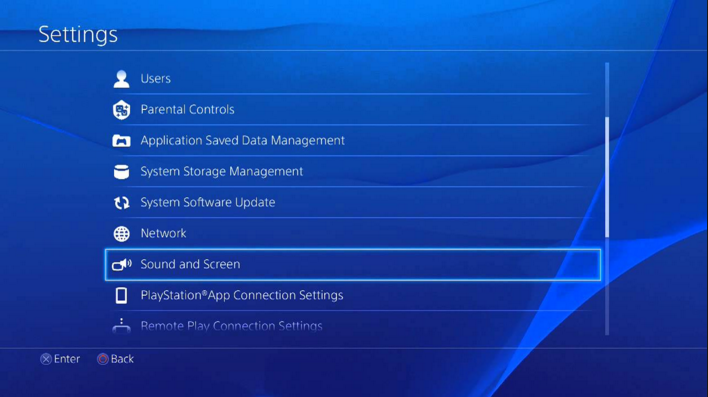
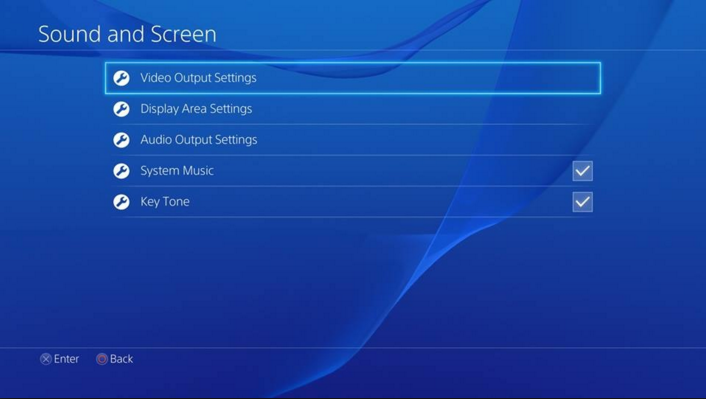
So to summarise: you can adjust the display area of the game screen to match the TV screen. Select [Settings] > [Sound and Screen] > [Display Area Settings] and then manually adjust the bordered area to where you see fit.
I hope this helps!
Despite such backfire (some of the images were pretty hilarious tho lol), this thread still shows an option for those who want to stretch the image a tad wider. Some people don't like that, and that's understandable but this is just an option for those who want to. Thanks. [/EDIT]
Hey all,
So I thought this thread may be of use to a few people considering the complaints regarding the PS2 games not running at a full 16:9/widescreen option on the PS4. If that is the case, the way you can easily fix this is by going on the PS4 Settings Menu ----> Sound and Screen ----> Display Area Settings and then maximizing the area to the edges of your TV screen to where you want. You can also use your TV settings and toggle around with "wide, zoom, cinema" etc to mess around with what image you're comfortable with; I know I used the latter on some PS1/2 classics on PS3, then changed back to native display when I played PS3 games. It worked well IMO.
So to summarise: you can adjust the display area of the game screen to match the TV screen. Select [Settings] > [Sound and Screen] > [Display Area Settings] and then manually adjust the bordered area to where you see fit.
I hope this helps!


