

I found out about this at http://www.blurbusters.com. I have it running on my Asus VG278H + Titan setup now and it's amazing.
NVIDIA originally worked with display manufacturers to create LightBoost with the intent of reducing 3D crosstalk. The monitor strobes the backlight once per frame instead of having it on continuously (so it's flashing frames like a CRT or plasma), which syncs with the shutter glasses and reduces the double image effect. They only engage the strobed mode while in stereo 3D mode because it trades off some brightness and colour fidelity.
People realized that this CRT-like display mode would be great for regular 120 FPS gaming and figured out how to hack the display modes so that strobed backlighting is always enabled, and they have a convenient tool for it available now.
You can get more info and download the ToastyX Strobelight utility here: http://www.monitortests.com/forum/T...htBoost-Utility-for-AMD-ATI-and-NVIDIA?page=1
Warning: Don't run this on regular 60Hz monitors. The utility sets a 120 Hz refresh and your monitor won't be able to display anything.
(It doesn't enable strobed backlight on regular 60Hz monitors or anything, just these 120Hz ones with Lightboost)
I set up mine by removing all the existing refresh rates and just adding the one "120 Hz strobed" entry. It's strobing in the regular desktop as well as in 120 FPS fullscreen games now, and I don't have to mess around with enabling/disabling it. I didn't notice much difference between the 10% and 100% "brightness" setting as far as motion quality goes, so I just kept it at 100% (longest strobe) to keep the brightness mostly intact.
What's the difference?
These pictures were taken by a "pursuit camera", a setup where the camera pans across the screen at the same speed as the target moving across the screen. This test simulates what happens when our eyes are tracking moving objects. With continous backlight, the image gets smeared across the retina as our eyes move, similar to how a photo gets smudged if the photographer has shaky hands during the exposure.
from http://www.blurbusters.com/faq/60vs120vsLB/
How do you tell when it's working?
- While you have something bright displayed, look at a fixed point on the screen, close one eye and and wave your finger across your field of view. The shadow trail your finger leaves behind should be made up of a bunch of separate snapshots instead of a continuous blur.
- Go to this web page in Chrome (120 FPS-friendly browser): http://www.testufo.com/#test=eyetracking *** Epilepsy warning: I'm not sure if this is one of the bad visual patterns ***
If you focus on the top alien, you can see that the image is made up of a bunch of fixed vertical white lines that are just blanking sections to give the illusion of moving squares. Follow the bottom alien and you should see one of two things: either the white lines blur into a gray mess (continuous mode), or you see the distinct lines moving along with the alien (strobed mode).
- try reading a sign with some text while strafing sideways in a first person game.
Other options:
- Samsung's 3D monitors also strobe if the display is set to frame-sequential 3D (doesn't actually have to be showing 3D content)
- some HDTVs can be modified to accept and display 120 fps input without motion interpolation, and many include strobing backlight as part of their motion enhancment. Shorter strobes are claimed as higher refresh rate equivalents, which is where those 480Hz etc refresh rate claims come from. http://www.blurbusters.com/faq/120hz-pc-to-tv/. It looks like they're still early in the investigation so haven't documented much on which ones are working and which aren't, but it's great that they finally figured it out. I'll update if I find a best suggestion for 120 FPS HDTV.
It's referred to as scanning backlight in some places. I like the "strobe" description since it conveys what's going on a bit more clearly.
Downsides:
"My colour quality sucks after enabling Lightboost"
Check the recommended settings at http://www.blurbusters.com/zero-motion-blur/lightboost-faq/
NVIDIA originally worked with display manufacturers to create LightBoost with the intent of reducing 3D crosstalk. The monitor strobes the backlight once per frame instead of having it on continuously (so it's flashing frames like a CRT or plasma), which syncs with the shutter glasses and reduces the double image effect. They only engage the strobed mode while in stereo 3D mode because it trades off some brightness and colour fidelity.
People realized that this CRT-like display mode would be great for regular 120 FPS gaming and figured out how to hack the display modes so that strobed backlighting is always enabled, and they have a convenient tool for it available now.
You can get more info and download the ToastyX Strobelight utility here: http://www.monitortests.com/forum/T...htBoost-Utility-for-AMD-ATI-and-NVIDIA?page=1
Warning: Don't run this on regular 60Hz monitors. The utility sets a 120 Hz refresh and your monitor won't be able to display anything.
Make sure you warn people not to run ToastyX Strobelight on 60Hz monitors. That's the problem user Hip Hop is having, who wrote he/she is using a VS247H-P -- that's just a 60Hz monitor. Strobelight forces a computer to operate at 120Hz, so 60Hz users should not install Strobelight.
Thanks! Mark Rejhon
(It doesn't enable strobed backlight on regular 60Hz monitors or anything, just these 120Hz ones with Lightboost)
I set up mine by removing all the existing refresh rates and just adding the one "120 Hz strobed" entry. It's strobing in the regular desktop as well as in 120 FPS fullscreen games now, and I don't have to mess around with enabling/disabling it. I didn't notice much difference between the 10% and 100% "brightness" setting as far as motion quality goes, so I just kept it at 100% (longest strobe) to keep the brightness mostly intact.
What's the difference?
These pictures were taken by a "pursuit camera", a setup where the camera pans across the screen at the same speed as the target moving across the screen. This test simulates what happens when our eyes are tracking moving objects. With continous backlight, the image gets smeared across the retina as our eyes move, similar to how a photo gets smudged if the photographer has shaky hands during the exposure.
60 Hz, continous backlight:
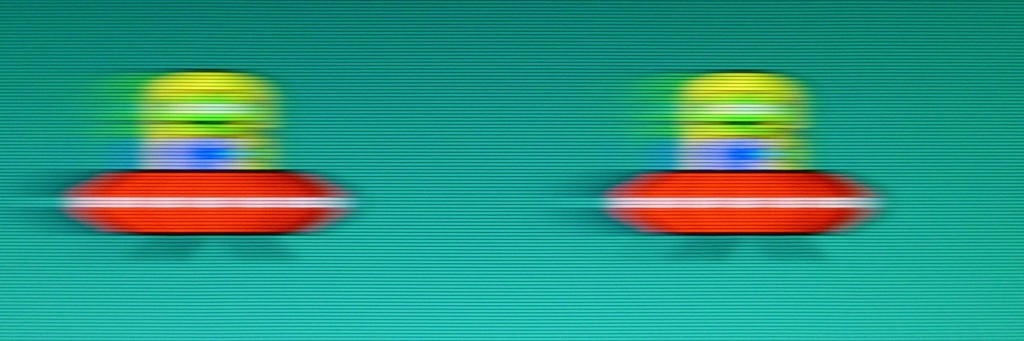
(no strobing 60Hz because it creates the same flicker as 60 Hz CRTs)
120 Hz, continous backlight:
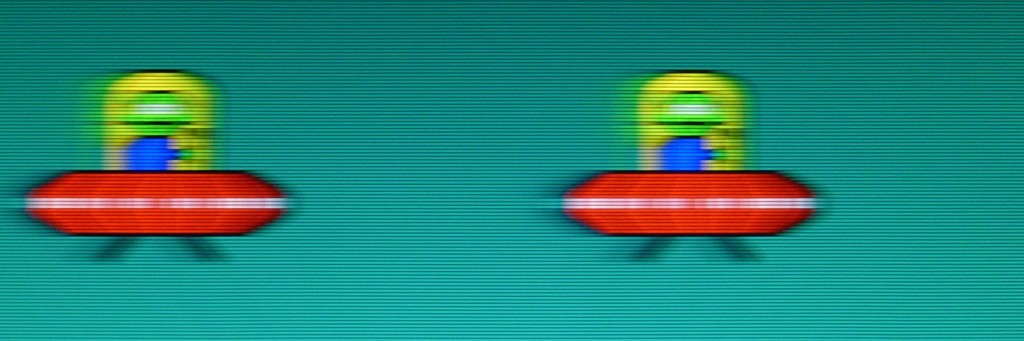
120 Hz, strobed backlight:
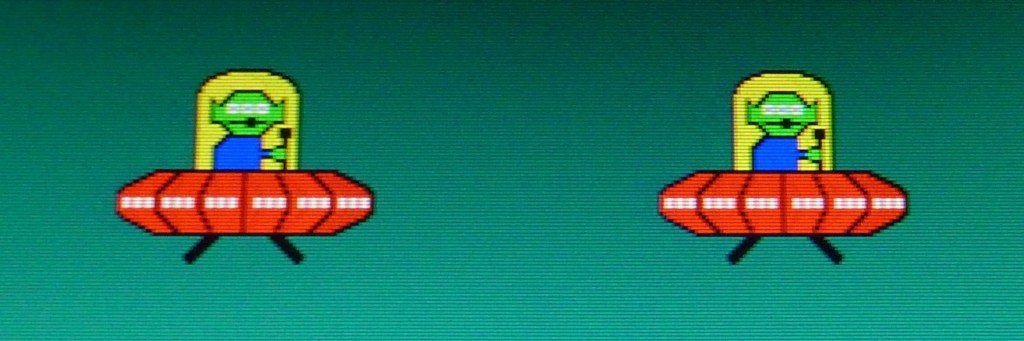
from http://www.blurbusters.com/faq/60vs120vsLB/
How do you tell when it's working?
- While you have something bright displayed, look at a fixed point on the screen, close one eye and and wave your finger across your field of view. The shadow trail your finger leaves behind should be made up of a bunch of separate snapshots instead of a continuous blur.
- Go to this web page in Chrome (120 FPS-friendly browser): http://www.testufo.com/#test=eyetracking *** Epilepsy warning: I'm not sure if this is one of the bad visual patterns ***
If you focus on the top alien, you can see that the image is made up of a bunch of fixed vertical white lines that are just blanking sections to give the illusion of moving squares. Follow the bottom alien and you should see one of two things: either the white lines blur into a gray mess (continuous mode), or you see the distinct lines moving along with the alien (strobed mode).
- try reading a sign with some text while strafing sideways in a first person game.
Requirements:
Windows Vista or later
AMD/ATI or NVIDIA GPU (laptops with switchable graphics are not supported)
LightBoost-capable monitor
These monitors are known to work:
ASUS VG248QE
ASUS VG278H (can take 5-10 minutes to initialize) (AMD/ATI support is currently problematic)
ASUS VG278HE
BenQ XL2411T
BenQ XL2420T
BenQ XL2720T
These monitors do not have LightBoost:
Alienware AW2310
AOC g2460Pqu
ASUS VG236H
BenQ XL2410T
Hanns.G HS233H3B
Other options:
- Samsung's 3D monitors also strobe if the display is set to frame-sequential 3D (doesn't actually have to be showing 3D content)
Tested: S23A700D, S23A750D, S23A950D, S27A750D, S27A950D
http://www.blurbusters.com/zero-motion-blur/samsung/
I´ve used an SA23700D with an AMD 7970 and it works incredible. Bear in mind that with this Samsung monitors it works with both AMD and Nvidia cards.
Lightboost per se works only with Nvidia cards and Nvidia 3D vision monitors.
- some HDTVs can be modified to accept and display 120 fps input without motion interpolation, and many include strobing backlight as part of their motion enhancment. Shorter strobes are claimed as higher refresh rate equivalents, which is where those 480Hz etc refresh rate claims come from. http://www.blurbusters.com/faq/120hz-pc-to-tv/. It looks like they're still early in the investigation so haven't documented much on which ones are working and which aren't, but it's great that they finally figured it out. I'll update if I find a best suggestion for 120 FPS HDTV.
It's referred to as scanning backlight in some places. I like the "strobe" description since it conveys what's going on a bit more clearly.
Downsides:
If your content isn't running at full frame rate, you'll see a double image effect because the same image is in place for two or more strobes. To put it another way, it's bad to have non-updated frames getting strobed again. You see two clear copies instead of a blur. You may find it's better to run in continuous backlight mode for games you can't hit full frame rate on. You can compare 60/120 on screen at the same time here: http://www.testufo.com/#test=framerates...However, the one significant flaw I see is the fact that it requires the content to hit and maintain 120 fps....
"My colour quality sucks after enabling Lightboost"
Check the recommended settings at http://www.blurbusters.com/zero-motion-blur/lightboost-faq/


