• Hey Guest. Check out your NeoGAF Wrapped 2025 results here!

Photoshop Tips and Tricks Thread

Status
Not open for further replies.

Keylime

ÏÎ¯Î»Ï á¼Î¾ÎµÏÎγλοÏÏον καί ÏεÏδολÏγον οá½Îº εἰÏÏν
I'd love to learn what sorts of cool things about photoshop I don't know about and could use in the future, so I figured I'd create this thread to share the love. If this thread gets enough love than it should only increase the quality of :lol 's generated in threads.

I'll have a table of contents in the OP, but I recommend reading the entire thread as there are small tidbits of info throughout. The ToC is an attempt to capture the meatier responses.

Table of Contents:

Image Masking (RubxQub)
Create a stone texture look (Outcast 2004)
Jado's General Advice (Jado)
Tomjr's Keyboard Shortcuts (tomjr)
Old School Photo Look, Sepia Tone (PantherLotus)
You Suck at Photoshop YT Videos (Struct09)
Color Isolation Tutorial (Buckethead)
Animated GIF from Video File (RubxQub)
KidGalactus' General Advice (KidGalactus)
Marquee/Lasso Selection Shortcuts (tomjr)
Changing eye color, could apply to other color changes (Jimmbow)

I'll start things off with something pretty simple but extremely effective.

Image Masking

What is this: This allows you define an area in which a layer will be visible.

Common uses: You want to put an image "behind" different portions of a picture. If you want to replace one persons face with another persons face, but want to maintain the facial proportions of the original, you could define the original face as an image mask to ensure that your new face will never exceed the boundaries of the original.

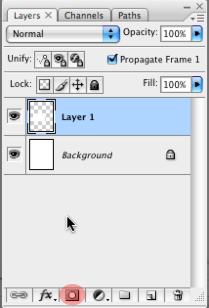
How do you do it: Select the layer than you want to keep within a specific boundary (not the layer that contains the boundary). Use whichever selection method you prefer to plot out the boundary and select the following option:
PSHelp.png


Your layer will now show two images side by side with a link icon between them. This means that anytime you move the layer, it will move both the layer mask you created and the actual layer image itself.

I often will click on the link icon to unlink them, and select the image portion of the layer and drag it around to get it to fit within the boundary (image mask) that I set up. This allows me to get whatever I wanted in just the right place.
 
As someone who works with print, cant we start with the basics?

RGB does NOT equal CMYK. You can't always replicate RGB in print.

Know there is a IS difference between what is on your screen and on the printed page. Learn how to read color percentages.
 
Instant stone texture

1.) Create a new RGB Image of you desired size.

In the channels pallete click on new Channel. It will become alpha 1.


2.) Press "D" To reset the foreground and background colors. Filter>Render>Clouds

3.) This is what you will see in alpha 1. Still in the Channels palette, click on the RGB thumbnail. Switch to the layers pallete.

4.) Filter>Render>Lighting effects.

Set light to directional.

Select Alpha 1.

Click ok.
INSTANT ROCK

5.) Go to Hue/Saturation and add some color if you like
 
Outcast2004 said:
Instant stone texture

1.) Create a new RGB Image of you desired size.

In the channels pallete click on new Channel. It will become alpha 1.


2.) Press "D" To reset the foreground and background colors. Filter>Render>Clouds

3.) This is what you will see in alpha 1. Still in the Channels palette, click on the RGB thumbnail. Switch to the layers pallete.

4.) Filter>Render>Lighting effects.

Set light to directional.

Select Alpha 1.

Click ok.
INSTANT ROCK

5.) Go to Hue/Saturation and add some color if you like
Something seems to be missing. When I'm at step 4, I can't select any filter effects because the layer is locked.

I can get the alpha 1 image to be a black and white cloud looking image but I'm frozen on step 4.

Any ideas as to what could be up?
 
Just some basic general stuff.

Get any basic Wacom tablet (Graphire, Bamboo) to instantly speed up and improve Photoshop work.

Never work directly on a Background layer. Use background layer copies, adjustment layers, or duplicate files. Save work files as TIFs (or PSDs), then export to JPEG, GIF, etc.

A quick way to mask a complex object, for selection curves adjustment for example, is to use the magic wand and mess with the tolerance levels (which range of neighboring pixels are selected), then go into Quick Mask mode and use a soft edged brush to refine the selection. Save as an alpha layer to use the selection again later on.

Clone/heal on a separate empty layer above your background layer! This goes back to the rule about not working on your B/G later.

Don't abuse the healing tool. It smudges and destroys fine detail. Your photoshop work will look poor. Make careful changes using the cloning tool (soft edges), burning/dodge tool, and small brush strokes with transparencies.

Masking hair, especially out of a non-white background, is difficult and time-consuming. Just a general observation.
 
Ah...I see that when I open the image in the first place it's locked for some reason...different issue all together. Will try with a new image as you suggested.

Edit: Got it. Pretty nifty. I'll have to experiment with channels more in the future to overlay textures on my images.

Thanks Outcast!
 
I would add that learning keystrokes / shortcuts will make photoshop work go much faster.
These are a few that I use often (w/ cs3 on a pc)...

d - default colors (black foreground / white background)
x - swap foreground and background
f - cycle through workspace (can't explain, just try)
tab - toggle toolbars
hold space - activate the hand tool to drag your canvas

while using a brush / pencil / eraser
[ / ] bracket keys to increase / decrease the size of your brush
numbers will input opacity
caps lock will toggle brush / cursor

ctrl +/- to zoom
double click the zoom tool on the tool bar to zoom directly to 100% zoom.

adding to the working with mask suggestion above, if you alt-click the mask thumbnail, it will allow you to work directly on the mask without viewing the image you are masking.
 
so for someone who has never used photoshop, can anyone point me to a trial version? or maybe another program that will let me do something similar thats freeware?(as I don't really want to drop $100 on something just to copy and paste heads onto bodies)
 
mr stroke said:
so for someone who has never used photoshop, can anyone point me to a trial version? or maybe another program that will let me do something similar thats freeware?(as I don't really want to drop $100 on something just to copy and paste heads onto bodies)
There's GIMP...
 
Awesome thread. Can the OP do an index for these suggestions?

How to Sepia Tone a Photo
Sepia Tone is that yellowish/rusty look that photos from the late 1800s get after they've been exposed to dozens of years of light and air. This is effect is mostly used for wedding photography and can be used to visually ''age'' a picture.

HOW TO
Original Image:

superobama.jpg


1. Image > Adjust > Desaturate

Result:

superobama-blackandwhite.jpg


2. Go to Image > Adjust > Variations.
3. Move the Fine<-->Coarse slider down one notch less than the middle.
4. Click on More Yellow once.
5. Click on More Red once.
6. Click OK.


Result:

superobama-sepia.jpg


For fun:

superobama-TIME-color.jpg
superobama-TIME.jpg
 
Updated the OP with a Table of Contents.

If this thread gets big enough I'll start splitting things into categories.
 
Good ol' fashioned color isolation tutorial.

Let's take an image of this ugly ugly woman.

ejijuv.jpg


We're going to copy the original image by clicking on Layer 1 and dragging it to the new layer icon likeso:

34qo7j6.jpg


This will duplicate the layer. Now we will create our black and white version of the image by pressing CTRL (or CMD) & Shift & U at the same time on the Layer 1 Copy.

Then once you have "Layer 1 copy" click on that layer once and click the New Layer Mask icon.


i6a4jn.jpg


Make sure that you have a Hard Edged brush (100% opacity) otherwise it will look a little wonky. Since I only wanted a little color in the image, I put the Black & White layer on top.
Then color in the areas black where you want the color to be, likeso:


oir7z8.jpg


Original Image
2utpwqq.jpg


Image w/ Color Removed
2a4wtgk.jpg


Image w/ Color Isolated
wgyv5l.jpg


Tips: Use the Hard Edged brush, however it's okay to use a soft brush around the edges to give it a more clean, blended look. Practice makes perfect fuckers!
 
PantherLotus said:
Awesome thread. Can the OP do an index for these suggestions?

How to Sepia Tone a Photo
Sepia Tone is that yellowish/rusty look that photos from the late 1800s get after they've been exposed to dozens of years of light and air. This is effect is mostly used for wedding photography and can be used to visually ''age'' a picture.

HOW TO
Original Image:


1. Image > Adjust > Desaturate

Result:


2. Go to Image > Adjust > Variations.
3. Move the Fine<-->Coarse slider down one notch less than the middle.
4. Click on More Yellow once.
5. Click on More Red once.
6. Click OK.


Result:

There's an easier way to do this. Go to "image", "mode", "duotone".
Then select what you want as your secondary color, and poof done. No muss... no fuss.
 
Making an animated gif from a video file

Go to File>>Import>>Frames from Video File and select the movie you want to get a .gif from.

You will get a dialog box asking you to modify how many frames you want to import, as well as box in a portion of the video you want to import (there is a limit on the number of frames you can import, don't know it offhand).

When you select OK, your layer list will be full of a ton of layers, each layer representing a frame within the video.

If you do not have the animation toolbar visible, do so. It will be automatically populated with the frames from your video that you imported.

Animated GIF Forward/Reverse
In the animation toolbar, select all the frames in your animation except the first and the last. In the top right corner of the toolbar is 3 little lines which represent the options. Click on that and select "Copy Frames".

Select the last frame in the animation and again go back to the animation options and select "Paste Frames". There will be a dialog box asking you where you want to paste your frames, with After your selection being the default. Say OK.

Now with all of your pasted frames highlighted (should be by default) go back to the animation options and select "Reverse".

The end result will be an animated gif that will play forwards and backwards in an endless loop:

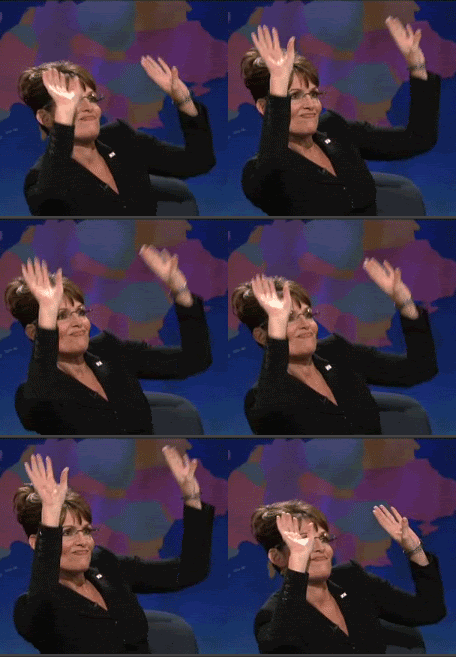
PalinRoof.gif
 
RubxQub said:
Making an animated gif from a video file

Go to File>>Import>>Frames from Video File and select the movie you want to get a .gif from.

You will get a dialog box asking you to modify how many frames you want to import, as well as box in a portion of the video you want to import (there is a limit on the number of frames you can import, don't know it offhand).

When you select OK, your layer list will be full of a ton of layers, each layer representing a frame within the video.

If you do not have the animation toolbar visible, do so. It will be automatically populated with the frames from your video that you imported.

Animated GIF Forward/Reverse
In the animation toolbar, select all the frames in your animation except the first and the last. In the top right corner of the toolbar is 3 little lines which represent the options. Click on that and select "Copy Frames".

Select the last frame in the animation and again go back to the animation options and select "Paste Frames". There will be a dialog box asking you where you want to paste your frames, with After your selection being the default. Say OK.

Now with all of your pasted frames highlighted (should be by default) go back to the animation options and select "Reverse".

The end result will be an animated gif that will play forwards and backwards in an endless loop:

PalinRoof.gif

If you do it this way, you should make sure to delete the repeating frames so the animation doesn't appear to stand still.

Typically, the repeating frames are the first and last frame in the initial animation (the one you duplicate and reverse). If you don't remove those frames, the animation will stall up in the middle and at the end because it'll play the same frame twice.
 
Ecrofirt said:
If you do it this way, you should make sure to delete the repeating frames so the animation doesn't appear to stand still.

Typically, the repeating frames are the first and last frame in the initial animation (the one you duplicate and reverse). If you don't remove those frames, the animation will stall up in the middle and at the end because it'll play the same frame twice.
This is why I mention to not include those frames in the copy/paste activity :D

Edit: Worth calling out again I suppose, as it's a common error.
 
Learn the shortcuts, seriously.
And don't use image -> adjustments, use adjustment layers.

If you want to create something for the web, use save for web (it saves tons of space)

Learn how to work with color profiles, it reduces headaches afterwards.
 
Outcast2004 said:
As someone who works with print, cant we start with the basics?

RGB does NOT equal CMYK. You can't always replicate RGB in print.

Know there is a IS difference between what is on your screen and on the printed page. Learn how to read color percentages.

I need to send a mass email to all my broker customers with this in bold giant fucking letters.

And a side note of "RGB Red =! Print Red."
 
tomjr said:
I would add that learning keystrokes / shortcuts will make photoshop work go much faster.
These are a few that I use often (w/ cs3 on a pc)...

d - default colors (black foreground / white background)
x - swap foreground and background
f - cycle through workspace (can't explain, just try)
tab - toggle toolbars
hold space - activate the hand tool to drag your canvas

while using a brush / pencil / eraser
[ / ] bracket keys to increase / decrease the size of your brush
numbers will input opacity
caps lock will toggle brush / cursor

ctrl +/- to zoom
double click the zoom tool on the tool bar to zoom directly to 100% zoom.

adding to the working with mask suggestion above, if you alt-click the mask thumbnail, it will allow you to work directly on the mask without viewing the image you are masking.

Listen to this man!

also, alt+backspace fills the layer with the forground color, ctrl+backspace fills it with the background color.
 
Buckethead said:
Good ol' fashioned color isolation tutorial.

...

Tips: Use the Hard Edged brush, however it's okay to use a soft brush around the edges to give it a more clean, blended look. Practice makes perfect fuckers!

To new users: Don't start developing the bad habit of copying layers upon layers, when an adjustment layer will do perfectly fine.

All you need is an adjustment layer with a mask (on the actual adjustment layer itself), and you'd have the same thing, without the increase in file size, and ability to tweak the particular adjustment at any point.

Edit: I see I've been beaten, but it's an important feature for keeping your files neat and getting the most functionality out of the least intrusive ways.
 
Stuff that helps me at work.

Understand the index color palette for limited color projects.

Set up the actions to streamline your most used tasks.

Median, despeckle, and dust and scratches filter helps smooth low res bitmap images.

Make your own texture brushes.

select color range: understand how to balance fuzziness control with how many samples you're choosing

don't use brightness/contrast, use curves and levels for more accuracy.

the color adjustment tools under image: adjustments are very good tools that are overlooked

learn all the key shortcuts: M for marquis , V for move, X fore/back color, alt quick copy, etc. Most of the speed and comes from how you use the keyboard shortcuts.
 
lil smoke said:
Stuff that helps me at work.

Understand the index color palette for limited color projects.

Set up the actions to streamline your most used tasks.

Median, despeckle, and dust and scratches filter helps smooth low res bitmap images.

Make your own texture brushes.

select color range: understand how to balance fuzziness control with how many samples you're choosing

don't use brightness/contrast, use curves and levels for more accuracy.

the color adjustment tools under image: adjustments are very good tools that are overlooked

learn all the key shortcuts: M for marquis , V for move, X fore/back color, alt quick copy, etc. Most of the speed and comes from how you use the keyboard shortcuts.


A lot of this is something that not a lot of designers listen to. It makes what I do to set your stuff up to print that much harder.

Once again, understand what you see on screen is not what will print. Learn how to read your CMYK percentages and know your density.
 
Outcast2004 said:
A lot of this is something that not a lot of designers listen to. It makes what I do to set your stuff up to print that much harder.

Once again, understand what you see on screen is not what will print. Learn how to read your CMYK percentages and know your density.
:D I think we had this discussion before one time about getting shit right for the press.

Problem is when your boss comes in looking over your shoulder, they don't understand that you can't just make it look right onscreen, or on a printout. They want shit matching perfectly for their approval and their boards, so basically we have to do our job twice. On that looks good, and one that is appropriate for sedning out. I'm having that issue this very moment! They think I just push a goddamn button and that shit just works ARRGH
 
lil smoke said:
:D I think we had this discussion before one time about getting shit right for the press.

Problem is when your boss comes in looking over your shoulder, they don't understand that you can't just make it look right onscreen, or on a printout. They want shit matching perfectly for their approval and their boards, so basically we have to do our job twice. On that looks good, and one that is appropriate for sedning out. I'm having that issue this very moment! They think I just push a goddamn button and that shit just works ARRGH

What do you mean? It just takes a couple of clicks and bam it's ready, it's so easy to do, I don't know why you charge so much or take so long, the computer basically does it for you!
 
glistenm said:
What do you mean? It just takes a couple of clicks and bam it's ready, it's so easy to do, I don't know why you charge so much or take so long, the computer basically does it for you!

come sit in my chair sometime......
Do prepress, then you'll know pain and why "artist" is a VERY loose term.
 
glistenm said:
What do you mean? It just takes a couple of clicks and bam it's ready, it's so easy to do, I don't know why you charge so much or take so long, the computer basically does it for you!
These f'rs also always ask me how long something is gonna take to be done . Like there is a little clock next to the "do lil smoke's entire job" button in photoshop.

"oh according to this easy button it should be 4 minutes 38 seconds your hiness"
 
Minsc said:
To new users: Don't start developing the bad habit of copying layers upon layers, when an adjustment layer will do perfectly fine.

True, but this is a pretty newb-ish thread. Figured I wouldn't confuse 'em.
 
Perhaps this thread would move faster if I gave a tutorial on how to edit your friends' facebook pictures to appear as though their tits are visible through their clothes...
 
I use photoshop on the daily at work and used to work as a comics colorist. Here's some dumb tips that haven't been posted.

1-No matter what you've selected with the lasso, or what lasso you're using, you can press delete to get rid of the last anchor points. With the Polygon lasso this is the most noticable/drastic. With the regular lasso, you have to hold the delete key down. Same goes for the magnetic lasso. Try it out!

2-(photoshop7)- hold down alt, go to help and click about

3- If you're doing a coloring job and working with a lot of selections, don't be afraid to save paths. They save you a ton of time. Just make sure your paths palette is showing, and with your current selection active, right click and 'select create work path'. There you go! Now just click 'make path selection' when you need to use that shape again. Oh yeah, don't forget to rename your paths if you don't want to lose them.


4-if you're trying to paint digitally, don't use undo. Just paint over mistakes. This gives the impression of underdrawing/painting and makes the work look a lot less digital. Also saves a lot of time.


Gotta go now, I might post more stuff later.

Edit:

ONE MORE THING: You can fade almost any effect in photoshop (comes in handy when painting or coloring for comics). Once the operation you want to fade is complete, just press ctrl+shft+F and adjust the fade according to your tastes!

I can't tell you guys how useful this is. If you're an artist, use it until you understand it. It will save your life!
 
RubxQub, I love you for making thread! <3

Edit: I recently managed to learn how to make a gif from photoshop. I do it exactly like the information posted here but I've noticed that when I complete it even when I put the speed of the gif thing to "no delay" it'll just be too slow and not as fast as I would like it to be. I know I have to delete frames but when it comes to deleting them, what would you guys recommend? How many to delete?
 
You can cycle through tool options on the toolbar by holding shift and pressing the shortcut key for the tool.

I find myself using the polygonal lasso tool for better accuracy with a mouse. You can get the polygonal lasso with the regular lasso by holding down the alt key.

After you've made your selection with a lasso or marquee...

ctrl-alt d to feather your selection
ctrl-shift i to invert your selection
ctrl-d to deselect

You can move the marquee (not the selected area) by selecting the marquee / lasso tool, you can move (cut) the marquee selected area by selecting the move tool (v) (or hold down ctrl with the marquee / lasso tool)

Holding down alt with the marquee / lasso tool selected allows you to subtract from your selection

Holding down shift with the marquee / lasso tool selected will allow you to add to the selection
 
Rewrite said:
RubxQub, I love you for making thread! <3

Edit: I recently managed to learn how to make a gif from photoshop. I do it exactly like the information posted here but I've noticed that when I complete it even when I put the speed of the gif thing to "no delay" it'll just be too slow and not as fast as I would like it to be. I know I have to delete frames but when it comes to deleting them, what would you guys recommend? How many to delete?
Are you talking about the little preview window where you can adjust the dither and web snap and whatnot?

That screen always shows a slower gif than I'm actually creating. After I save the file and open it in a browser it looks good again.

If it's happening after you save, than I'm not so sure what's up.

As far as frame deletion goes, it just depends. My avatar has zero frames deleted, but due to that I had to limit it to 3 turns instead of 5-7. Smoothness was more important to me than variety :D

The number of frames in your gif shouldn't be affecting the speed, however, just animation smoothness and obviously the size of the gif.
 
RubxQub said:
Are you talking about the little preview window where you can adjust the dither and web snap and whatnot?

That screen always shows a slower gif than I'm actually creating. After I save the file and open it in a browser it looks good again.

If it's happening after you save, than I'm not so sure what's up.

As far as frame deletion goes, it just depends. My avatar has zero frames deleted, but due to that I had to limit it to 3 turns instead of 5-7. Smoothness was more important to me than variety :D

The number of frames in your gif shouldn't be affecting the speed, however, just animation smoothness and obviously the size of the gif.
Okay, I think it might be the size of it, but if you were to resize it, it'd be fixed right? What I was referring to was that I've seen some gifs flow nicely but then when I make mine and it's the end result, it's a bit slow even with 'no delay.' Here's one I've made:

12375s5.gif


Do you think it's fine?
 
Rewrite said:
Okay, I think it might be the size of it, but if you were to resize it, it'd be fixed right? What I was referring to was that I've seen some gifs flow nicely but then when I make mine and it's the end result, it's a bit slow even with 'no delay.' Here's one I've made:

12375s5.gif


Do you think it's fine?
Yeah, that looks a bit slow.

Not quite sure what that's about.
 
Status
Not open for further replies.
Top Bottom